Attendance Module
1. Overview
This module allows students to track their attendance across all registered courses and view detailed attendance records for each course. It offers a clean and interactive interface that helps students monitor their academic presence and receive warnings in case of low attendance.
2. Page Layout
When you navigate to the Attendance section from the sidebar, you will first see the Attendance Courses Page, which gives a quick summary of attendance for all courses.
2.1 Attendance Courses Page
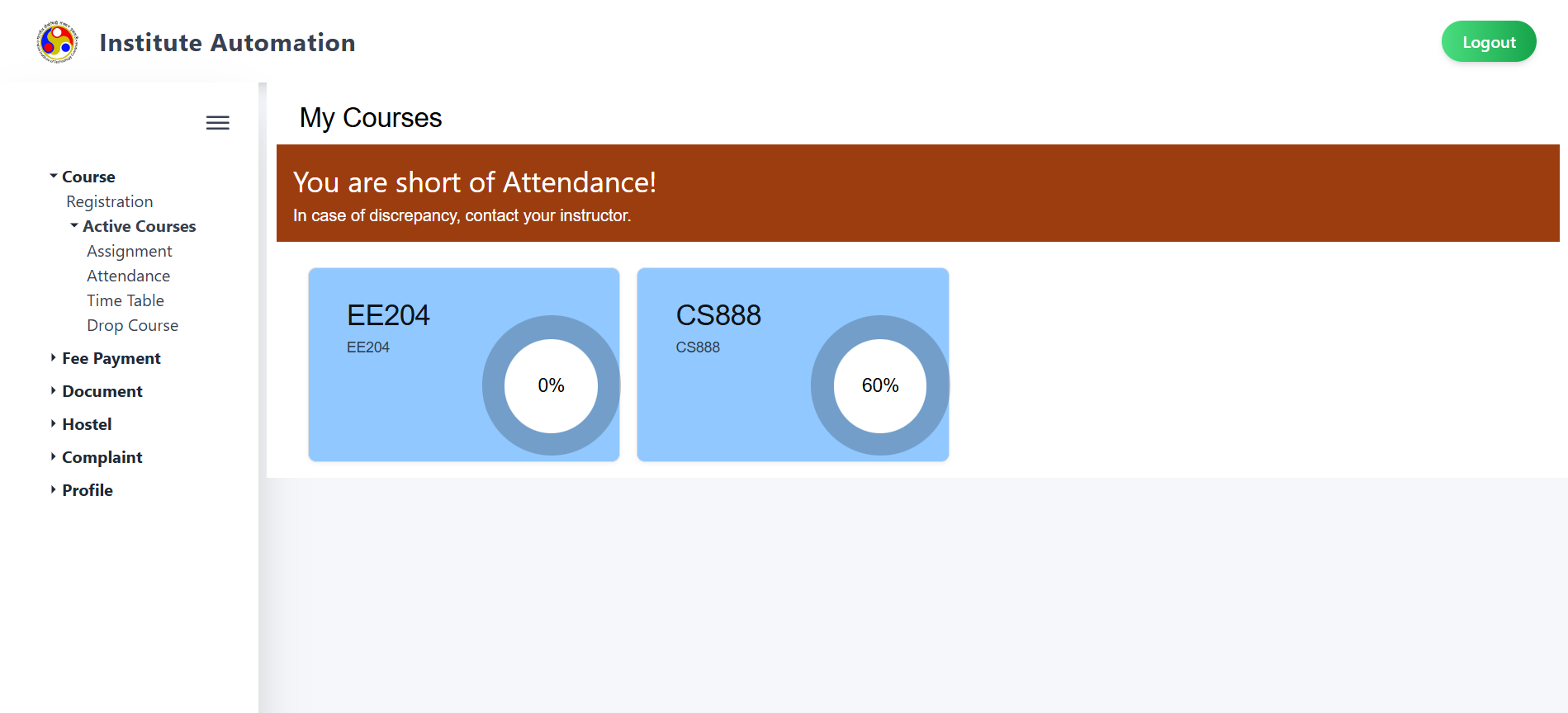
This page contains the following elements:
- Page Title: Displayed at the top as “Attendence”.
- Attendance Warning: If the student is short on attendance in any course, a red banner saying “You are short of Attendance!” appears prominently at the top.
- Course Cards: Each registered course is displayed in a card format with the following:
- Course Code (e.g., CS101)
- Attendance Percentage shown using a circular progress chart.
- Navigation: Clicking on any course card redirects you to the detailed view of that course’s attendance.
3. Features and How to Use Them
3.1 Viewing Overall Attendance
This view helps you quickly assess your attendance status across all courses:
- Each course card gives an instant view of your attendance percentage.
- If you are in danger of falling below the attendance threshold, a warning banner is shown.
- Use this view regularly to stay updated on where your attendance needs improvement.
3.2 Viewing Detailed Attendance for a Course
Clicking on any course card will open the Course Attendance Detail Page for that course.
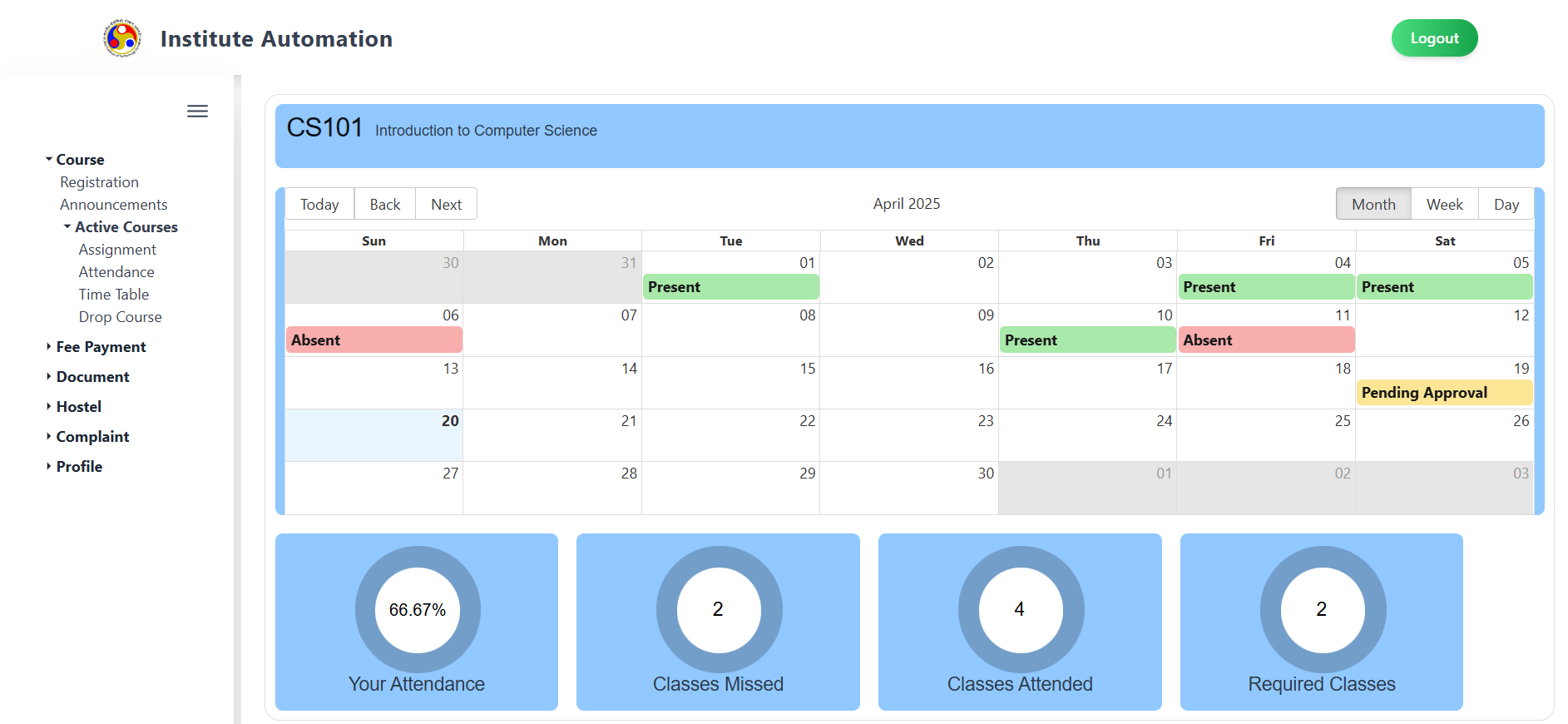
This page is designed to give an in-depth overview of your attendance in a single course and contains the following sections:
3.2.1 Course Header
- The course code and course name are displayed prominently at the top of the page.
3.2.2 Weekly Timetable View
- A weekly calendar (e.g., April 13 – April 19) shows the scheduled classes.
- The timetable allows students to visually see when classes were scheduled.
3.2.3 Attendance Summary Indicators
Below the calendar, there are three circular visual components showing:
- Your Attendance
- Displays the overall attendance percentage in this course (e.g., 0%).
- Classes Missed
- Shows the number of classes missed.
- Classes Attended
- Shows the number of classes attended.
Each indicator is color-coded and helps you evaluate your progress at a glance.
4. Validation and Behavior
- Real-Time Updates: Attendance is updated dynamically as new data is recorded by instructors.
- Low Attendance Warning: The system automatically shows a banner if any course drops below the threshold.
- Course Navigation: You can switch between courses by going back to the main Attendance page.
5. Important Notes
- Attendance Policy: Be aware of the minimum attendance requirement for each course. Falling short may lead to academic penalties.
- Update Frequency: Attendance data is updated periodically by instructors. Check regularly to avoid surprises.
- Technical Issues: If you find missing or incorrect attendance records, report the issue to your instructor or academic coordinator.
- Mobile Friendly: The interface is optimized for both desktop and mobile screens for convenient tracking on the go.
- Accessibility: Circular indicators and color-coded visuals ensure clarity and quick understanding for all users.