Fee Receipt
Fee_Receipt_Page
1. Overview
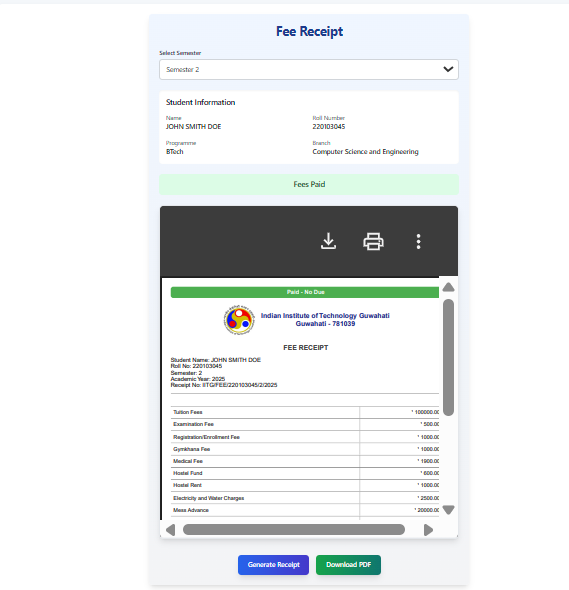
This page allows you to generate and download your academic fee receipt for a specific semester. You can select the desired semester, view your basic student information, see the payment status for that semester based on records, preview the receipt, and download it as a PDF file.
2. Page Sections
The page is organized into the following sections:
- Title: "Fee Receipt" clearly identifies the page's purpose.
- Semester Selection:
- A dropdown menu labeled "Select Semester".
- Purpose: Allows you to choose the specific academic semester (e.g., Semester 1, Semester 2, etc.) for which you want to generate the fee receipt.
- Student Information:
- Displays your key details:
- Name
- Roll Number
- Programme (e.g., BTech)
- Branch (e.g., Computer Science and Engineering)
- Purpose: Helps you confirm that the page is showing information relevant to you.
- Displays your key details:
- Fee Payment Status (Conditional):
- This section appears only after you select a semester from the dropdown.
- It displays a clear message indicating whether the fees for the selected semester are recorded as "Fees Paid" (typically shown with a green background) or "Fees Not Paid" (typically shown with a red background).
- Purpose: Informs you about the recorded payment status for the chosen semester before you generate the receipt. Note: This status is based on existing records and cannot be changed on this page.
- PDF Preview Area:
- A designated area where a preview of the generated fee receipt PDF will be displayed.
- If a receipt is being generated, it might show a loading indicator.
- Purpose: Allows you to see the content and layout of the fee receipt before downloading it.
- Action Buttons:
- Generate Receipt Button:
- Used to initiate the creation of the fee receipt PDF for the selected semester.
- This button is disabled until you select a semester. It will also show "Generating..." and be disabled while the PDF is being created.
- Download PDF Button (Conditional):
- This button appears only after you have successfully generated a receipt using the "Generate Receipt" button.
- Purpose: Allows you to save the generated fee receipt PDF to your device.
- Generate Receipt Button:
3. How to Use the Page
Follow these steps to generate and download your fee receipt:

- Select Semester:
- Click on the dropdown menu labeled "Select Semester".
- Choose the specific semester for which you need the receipt (e.g., "Semester 4").
- Once selected, the Fee Payment Status message will appear below the Student Information, indicating if fees are marked as paid or not paid for that semester.

-
Generate the Receipt:
- Click the "Generate Receipt" button.
- The button text will change to "Generating...", and it will become temporarily disabled.
- The PDF Preview Area will likely show a loading indicator.
- Wait a few moments for the system to create the PDF.
- Once generated, a preview of the fee receipt will appear in the PDF Preview Area.
- The "Download PDF" button will now become visible next to the "Generate Receipt" button.
-
Preview the Receipt (Optional):
- Scroll through the preview in the PDF Preview Area to check the details (student info, fee breakdown, payment status indication, semester).
- Download the Receipt:
- Click the "Download PDF" button.
- Your browser will prompt you to save the file, or it will automatically download the PDF.
- The downloaded file will typically be named something like
Fee_Receipt_Sem_[SemesterNumber].pdf(e.g.,Fee_Receipt_Sem_4.pdf). - Save the file to a location where you can easily find it.
4. Important Notes & Troubleshooting
- Semester Selection Required: You must select a semester before you can generate a receipt.
- Payment Status: The "Fees Paid" / "Fees Not Paid" status displayed is based on the information recorded in the system for the selected semester. This page does not process payments; it only generates receipts based on existing data.
- Receipt Content: The fee breakdown shown in the generated receipt might be standard for the selected academic session or specific to your record, depending on how the system is configured.
- PDF Viewer: You need a PDF viewer application (like Adobe Acrobat Reader or a built-in browser viewer) to open and view the downloaded receipt file.
- Generation Time: PDF generation might take a few seconds, especially for complex documents. Please be patient.
- Troubleshooting:
- If the "Generate Receipt" button remains disabled, ensure you have selected a semester from the dropdown.
- If the PDF preview doesn't load or the download fails, try refreshing the page and repeating the steps. Ensure you have a stable internet connection.
- If issues persist, contact the relevant administrative or technical support department.