Bonafide Certificate Application
This page allows you to apply for a Bonafide Certificate.
Navigation
To reach this page:
- Navigate to the All Documents page.
- Locate the Bonafide card.
- Click the View -> link on the Bonafide card.
Page Layout
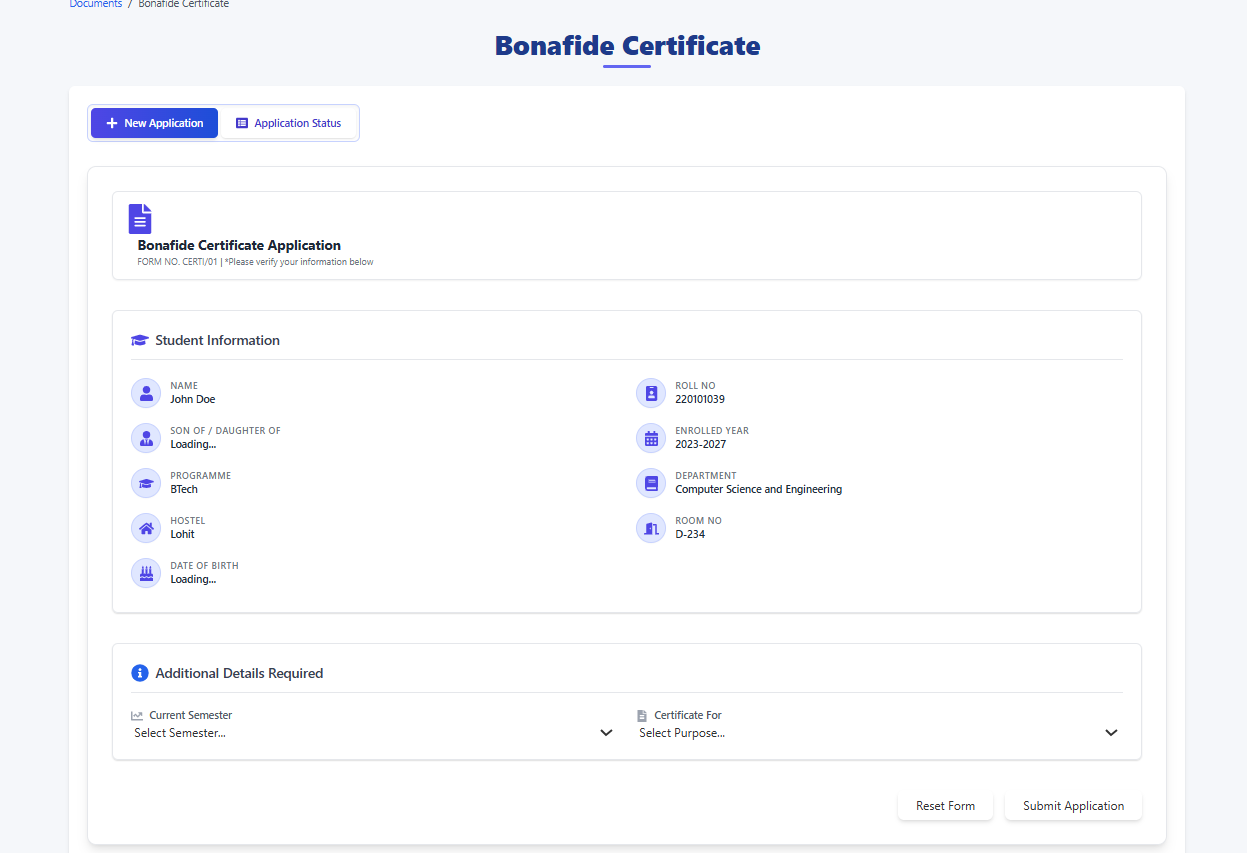
The page is titled Bonafide Certificate. It contains the following sections:
-
Tabs:
- + New Application: This is the default active tab, displaying the application form.
- Application Status: Click this tab to check the status of previously submitted applications (details for this tab would require a separate screenshot/documentation).
-
Bonafide Certificate Application Form:
-
Student Information: This section displays your pre-filled information, such as:
- Student Name
- Roll Number
- Program Name (e.g., Computer Science and Engineering)
- Department
- Batch (e.g., 2024)
- Hostel
- Room No.
- DOB
-
Additional Details Required: This section requires your input to complete the application:
- Current Semester: A dropdown menu to select your current semester (from 1 to 8).
- Certificate For: A dropdown menu to select the purpose for which you require the Bonafide Certificate,such as:
- Bank Account opening
- Educational Loan
- passport appilication
- Visa appilication
- Scholarship Appilication.
-
-
Action Buttons:
- Reset Form: Clears any selections you have made in the "Additional Details Required" section, allowing you to start over.
- Submit Application: Submits your application for the Bonafide Certificate after you have filled in the required details.
How to Apply
- Verify your details in the Student Information section.
- In the Additional Details Required section:
- Select your Current Semester from the dropdown list.
- Select the Certificate For (purpose) from the dropdown list.
- Review your selections.
- Click the Submit Application button.
- (Optional) If you need to clear your selections, click the Reset Form button.