Assignment Module
1. Overview
This page allows you to view, submit, and track course assignments. It provides a streamlined interface to view assignment details, submit responses, and manage submissions efficiently for each course.
2. Page Layout
When you navigate to the Assignments page of a course, you will see the following key sections:
- Title: Displays the heading "My Courses" at the top.
- Assignment Cards: Each assignment for the course is shown in a card format.
- Assignment Information:
- Title: Name of the assignment (e.g., “Dummy Course Assignment”).
- Description: Brief note or instructions provided by the instructor.
- Due Date: The deadline by which the assignment must be submitted.
- Submissions: Number of students who have already submitted the assignment.
- View Assignment Button: A button on each card to navigate to the assignment detail page.
- Loading/Error States: When assignments are being fetched, a loading indicator may be shown. If there's a problem fetching assignments, an error message is displayed.
3. Features and How to Use Them
3.1 Viewing Assignments List
 This page shows the list of all courses registered by a student.
After selecting a course, go to the View Assignments tab to see all active and past assignments.
This page shows the list of all courses registered by a student.
After selecting a course, go to the View Assignments tab to see all active and past assignments.
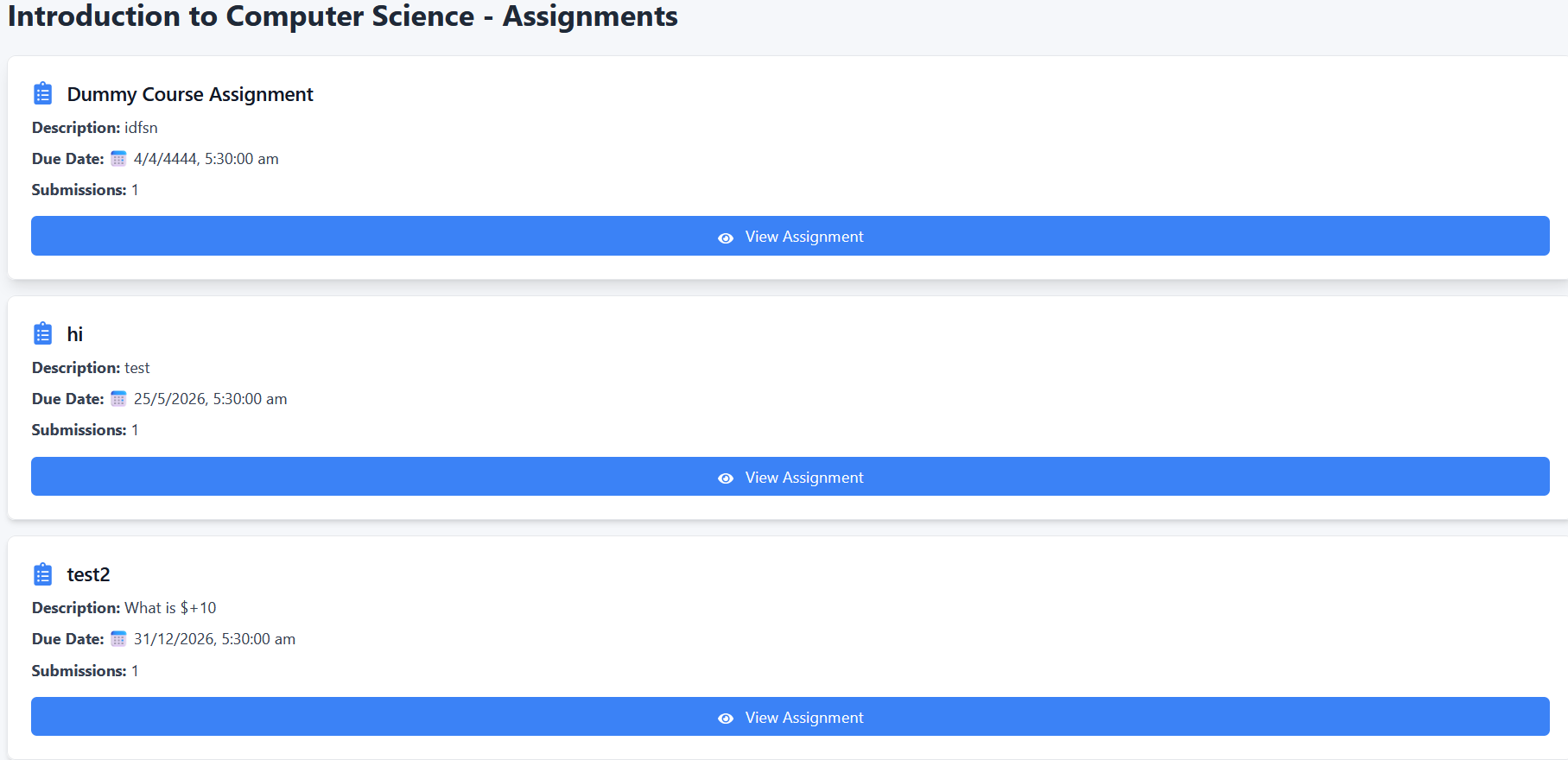
Each assignment card shows:
- Title
- Description
- Due Date
- Submissions Count
- View Assignment – click to access the assignment detail and submission page.
3.2 Viewing and Submitting an Assignment (Assignment Detail Page)
Click the "View Assignment" button on any card to go to that assignment’s detailed page.
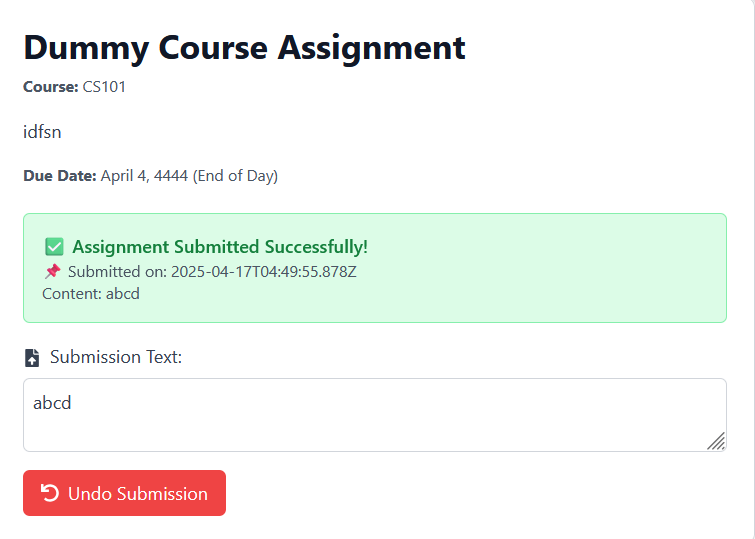
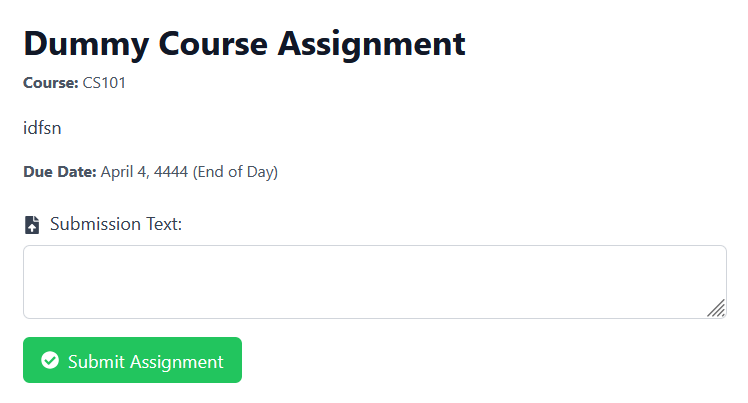
This page contains:
- Assignment Information:
- Title, Course Code
- Instructions/Description (if provided)
-
Due Date: Clearly shown (e.g., "April 4, 4444 – End of Day")
-
Submission Status Area:
- If you have submitted the assignment:
- A green success box is displayed with:
- Submission Successful message
- Submission Timestamp
- Submitted Content
-
If not submitted yet:
- You will see a blank text area for submission.
-
Submission Text Field:
- A large text input box where you type your assignment response.
-
You may edit this field freely before submission.
-
Submit / Undo Buttons:
- Submit Assignment: Appears if no submission has been made yet.
- Click to submit your assignment.
- A success message will confirm submission and show your input.
- Undo Submission: Appears after submission.
- Click to delete your current submission and re-enter new content.
- Once undone, the form will become editable again.
4. Validation and Behavior
- Empty Submissions: The system does not allow empty submissions.
- Multiple Submissions: Only one submission is allowed at a time. You must undo a submission before submitting again.
- Due Date Visibility: Although the due date is shown, late submissions handling depends on instructor settings.
5. Important Notes
- Save Before Submitting: Ensure your content is finalized before submitting. Once submitted, the field becomes read-only unless undone.
- Late Submissions: While the system may allow submission past the due date, instructors may penalize late entries. Follow your course policy.
- Undo Submission: Use this only if you need to edit and re-submit. Once undone, your earlier submission is deleted.
- Confirmation: A timestamp is saved and shown with your submission to confirm your submission time. -Contact: For questions about an assignment or submission issues, reach out to the course instructor or teaching assistant.