Complaint System
This interface provides tools for viewing, searching, and managing user-submitted complaints.
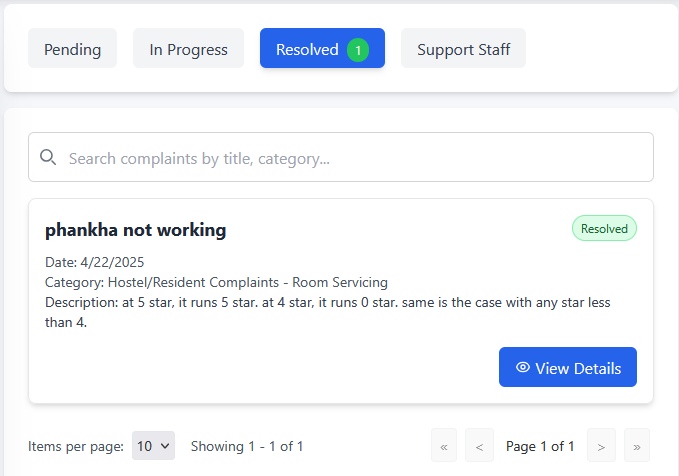
Filtering Tickets
Use the tabs at the top to filter the tickets based on their current status:
- Pending: Tickets awaiting action.
- In Progress: Tickets currently being worked on.
- Resolved: Tickets that have been completed or closed. A count of tickets in this status may be shown next to the tab name (e.g.,
Resolved 1). - Support Staff: Filter by assigned staff if applicable.
The currently active tab is highlighted (e.g., the blue Resolved tab in the image).
Searching and Viewing Tickets
- Search: Use the search bar (labeled
Search complaints by title, category...) to find specific tickets by keywords. - Ticket Information: Each ticket is displayed as a card showing key details:
- Title (e.g., phankha not working)
- Date Submitted
- Category
- Description (partial or full)
- Status Badge (e.g., the green
Resolvedbadge)
- View Full Details: Click the View Details button on a ticket card to access the complete information and management options for that specific ticket.
Pagination
If there are numerous tickets, use the controls at the bottom of the list:
- Items per page: Select how many tickets to display on each page using the dropdown menu.
- Navigation: Use the arrow buttons (
<<,<,>,>>) and the page number indicator (e.g.,Page 1 of 1) to browse through the list of tickets.