Documents
Documents_Page
This page provides access to important academic documents that you may need during your time as a student.
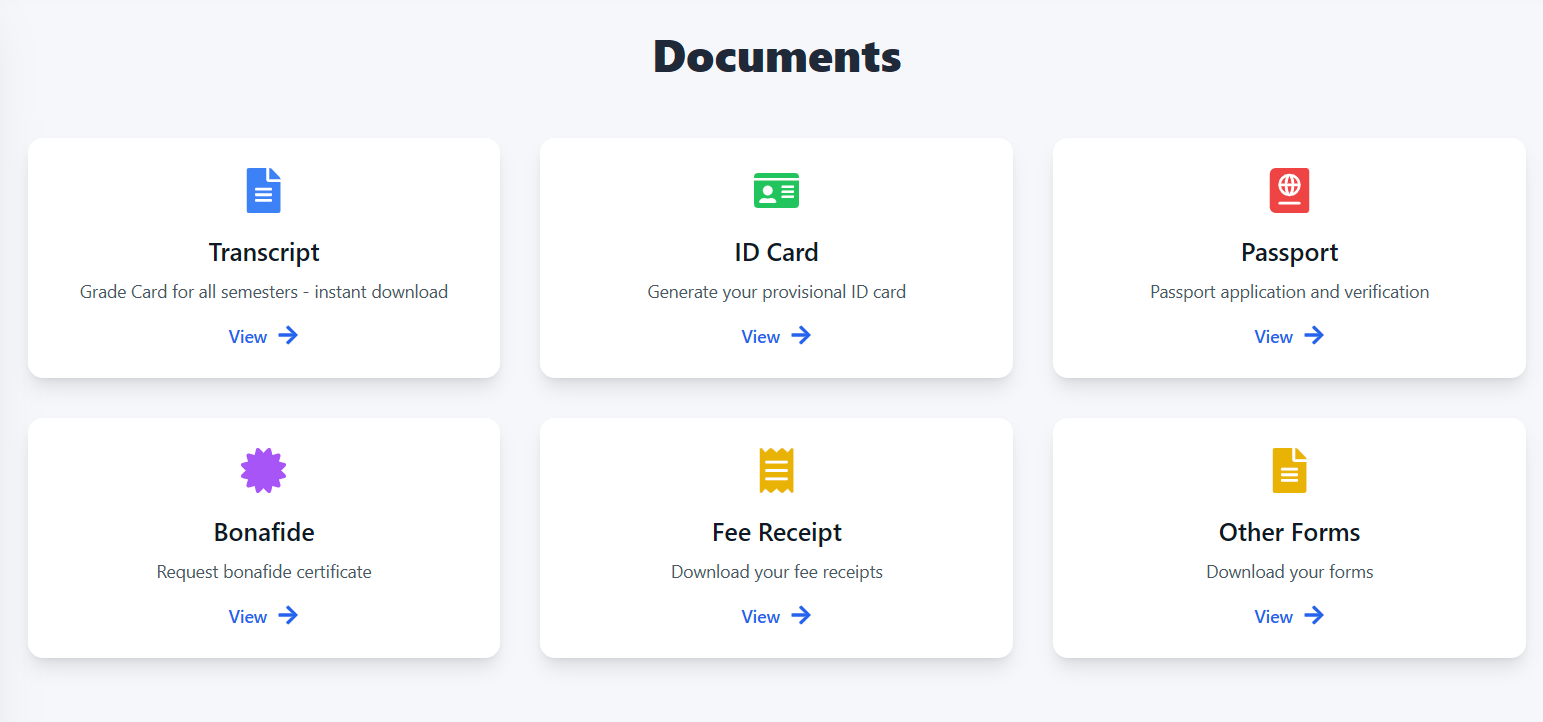
Purpose:
The Documents page serves as a centralized hub to easily download, generate, and request various essential documents. This eliminates the need to visit different departments or offices to obtain the required paperwork.
Available Documents:
The following documents are accessible on this page:
-
Transcript:
- Description: Your official academic record, including all grades received for all semesters.
- Functionality: Instant download available. You can download the transcript in a digital format (e.g., PDF)
- How to Use: Click the "View →" button below the Transcript description. The transcript will download automatically.
-
ID Card:
- Description: Allows you to generate your provisional college ID card.
- Functionality: Enables you to create a digital ID card.
- How to Use: Click the "View →" button below the ID Card description. You will likely be redirected to a form or a page where you need to input required information (e.g., student ID, personal details, photo) to generate your ID.
-
Passport:
- Description: Information about Passport application and verification.
- Functionality: Provides instruction about passport application.
- How to Use: Click the "View →" button below the Passport description. You will be redirected to a page with more details, instructions, or a link to begin passport application.
-
Bonafide:
- Description: Enables you to request a Bonafide certificate.
- Functionality: This certificate verifies that you are currently enrolled at the institution.
- How to Use: Click the "View →" button below the Bonafide description. You will be redirected to a form or a page where you can fill out the request for your Bonafide certificate. Follow the instructions provided to complete your request.
-
Fee Receipt:
- Description: Provides access to download your fee receipts for paid tuition or other fees.
- Functionality: Enables you to access and save your payment records.
- How to Use: Click the "View →" button below the Fee Receipt description. A list of available fee receipts will be shown or the latest receipt will download. If a list is displayed, select the specific receipt you wish to download.
-
Other Forms:
- Description: A central location for downloading various other forms related to your academic career.
- Functionality: Access to additional documents or templates required for specific processes.
- How to Use: Click the "View →" button below the Other Forms description. You will be redirected to a list of available forms that you can download. Select the form you need and click the download link.
General Instructions:
- To access any of the listed documents or initiate any process, simply click the "View →" button associated with each document description.
- The system will redirect you to a specific page related to the document.
- Follow the on-screen instructions to complete the process, download the file, fill the forms, or submit a request.
Important Note:
- Document availability and specific processes may vary.
- Always check the official website or contact the relevant departments for the most up-to-date information.
- This documentation may be updated periodically. Please refer to the "Last Updated" date at the bottom of this document.